Build a scene in 2 minutes
The fastest way to learn StoryBreak is to use it. This guided tutorial walks you through creating your first scene, step by step. You click, you type, you build.
Open StoryBreak and click "?" in the toolbar
Go to storybreak.app and sign in (or use local mode). Click the ? button in the top-right corner to open the Help panel.
Click "TRY IT"
At the bottom of the Help panel, you will see two buttons: TRY IT (green) and REPLAY TOUR (orange). Click TRY IT to start the hands-on tutorial.
Follow the green prompts
The tutorial highlights each element you need to interact with. Green pulsing borders show you where to click. The tutorial waits for you to complete each action before moving on: add a card, name a scene, write content, set a status, close the card, switch views.
Everything you create is saved
This is not a simulation. The cards you create during the tutorial are real, saved to your project. When the tutorial ends, you keep everything and you are ready to keep building.
Your first project
Open StoryBreak, pick a template, and get your corkboard ready in under 30 seconds.
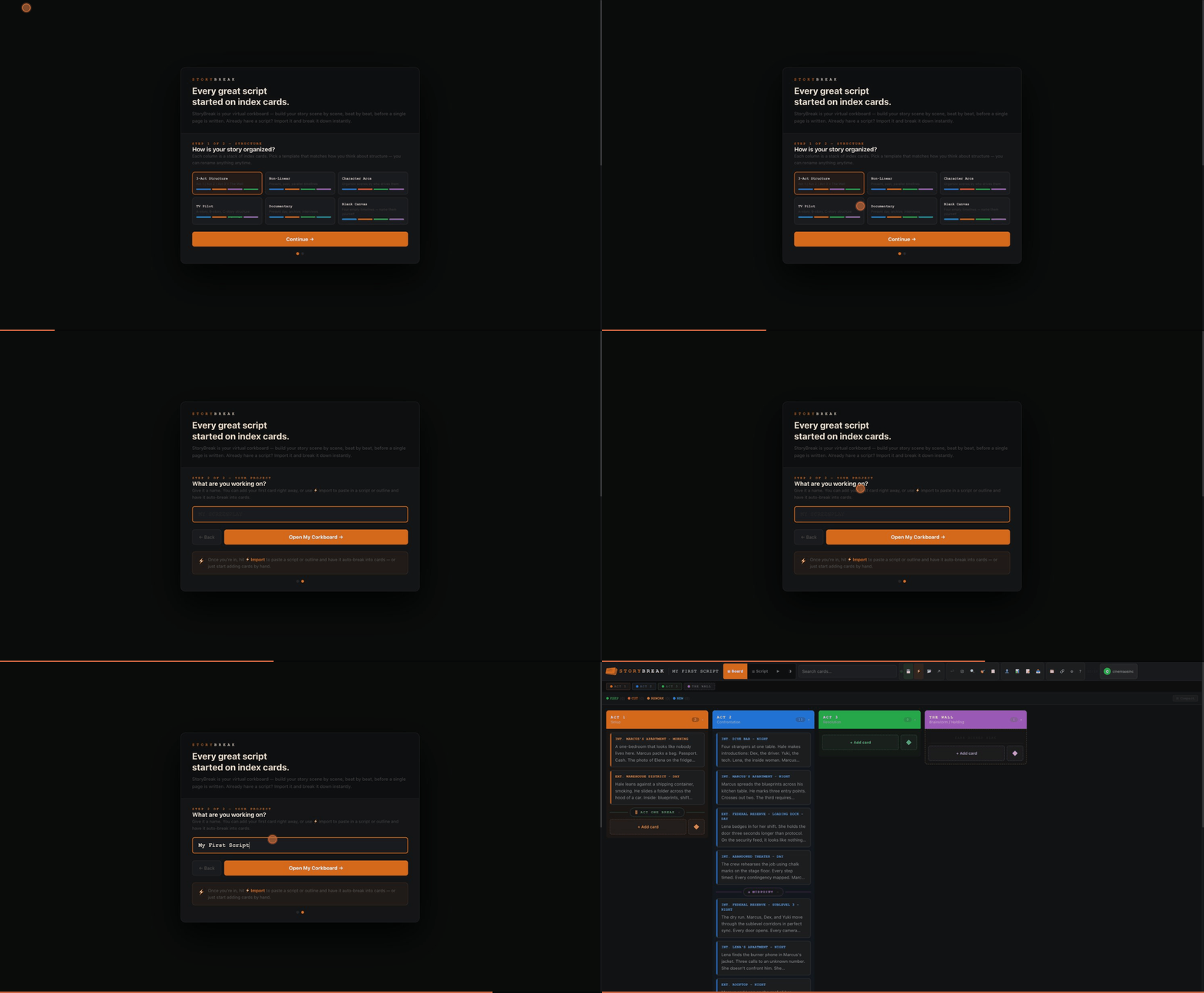
Open StoryBreak
Go to storybreak.app and sign in — or use the desktop app. Your free account is ready instantly.
Pick a template
The setup wizard shows six structure templates: 3-Act, Non-Linear, Character Arcs, TV Pilot, Documentary, or Blank Canvas. Each pre-configures your timelines with names and colors. Pick whatever fits your story.
Name your project
Give it a working title — you can always rename later by clicking the title in the top-left corner. Hit Create and your corkboard is ready.
Scene cards
Cards are the heart of StoryBreak. Each one is a scene, chapter, or story beat on your virtual corkboard.
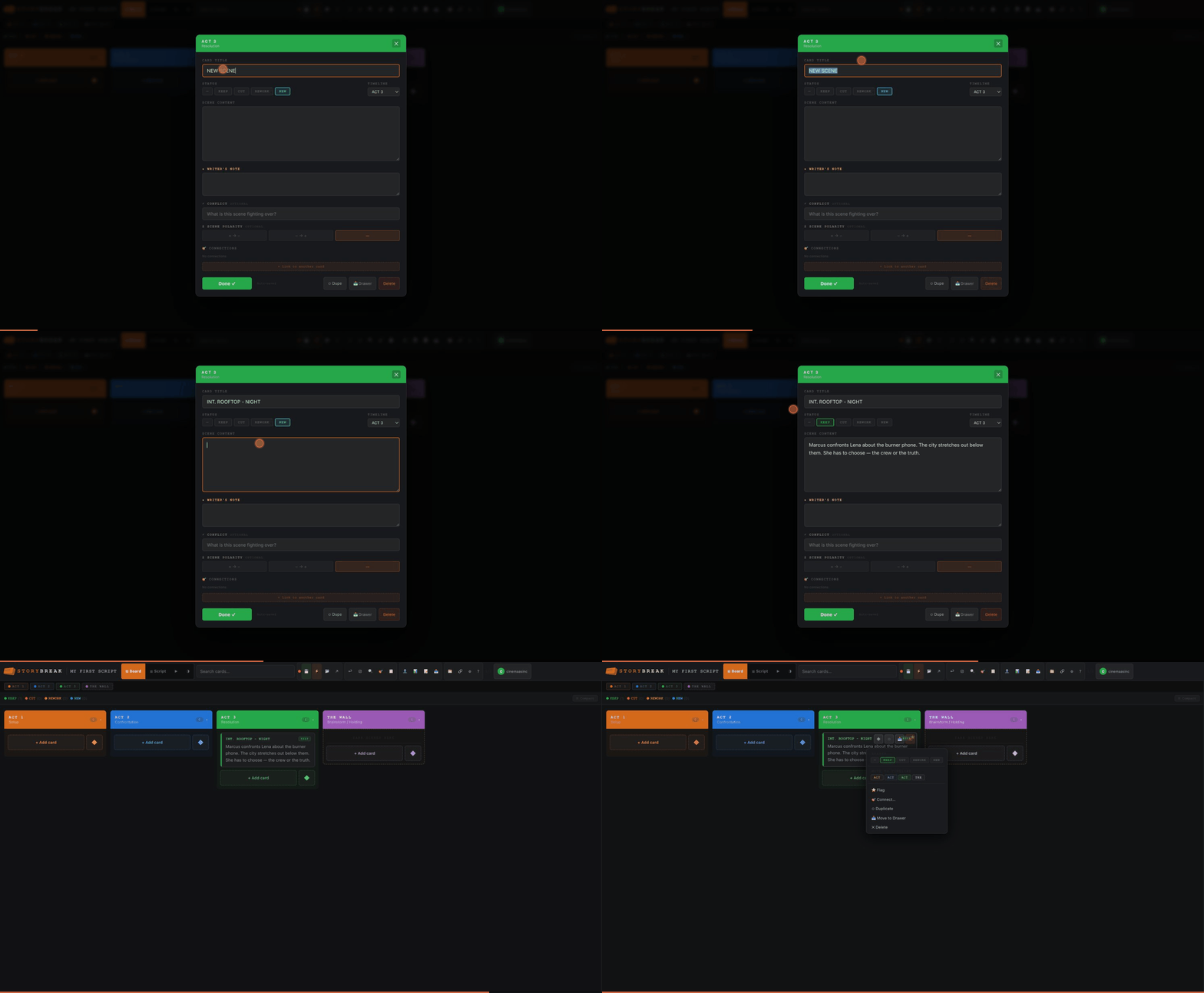
Add a card
Click + Add card at the bottom of any timeline column. Each card has seven fields: Title, Content, Notes, Conflict (shown with a lightning bolt), Polarity (+ to - or - to +), Status, and Timeline. You can also tag characters to any card.
Drag to reorder
Grab any card and drag it up or down to reorder scenes. Drag onto a different column header to move it to another timeline. The whole point is moving things around until the story clicks.
Tag with status
Mark cards as KEEP, REWORK, CUT, or NEW to track your revision progress. The status strip at the top of the board shows counts — click any status to filter the board to just those cards.
Select multiple
Shift+click any card to start selecting. Shift+click a second card to select the entire range. Use the action bar at the bottom to batch-move, change status, or delete all selected cards at once.
Right-click context menu
Right-click any card for instant actions: set status, move to timeline, flag, duplicate, link to another card, move to drawer, or delete — all without opening the edit modal.
Search & Find/Replace
Use the search bar in the header for live filtering across all cards. Press Cmd+F for Find & Replace — search across titles, content, and notes, then replace one at a time or all at once.
Beat markers
Beat markers are structural signposts between your scene cards. They show where the Inciting Incident lands, where the Midpoint hits, where the Climax fires.
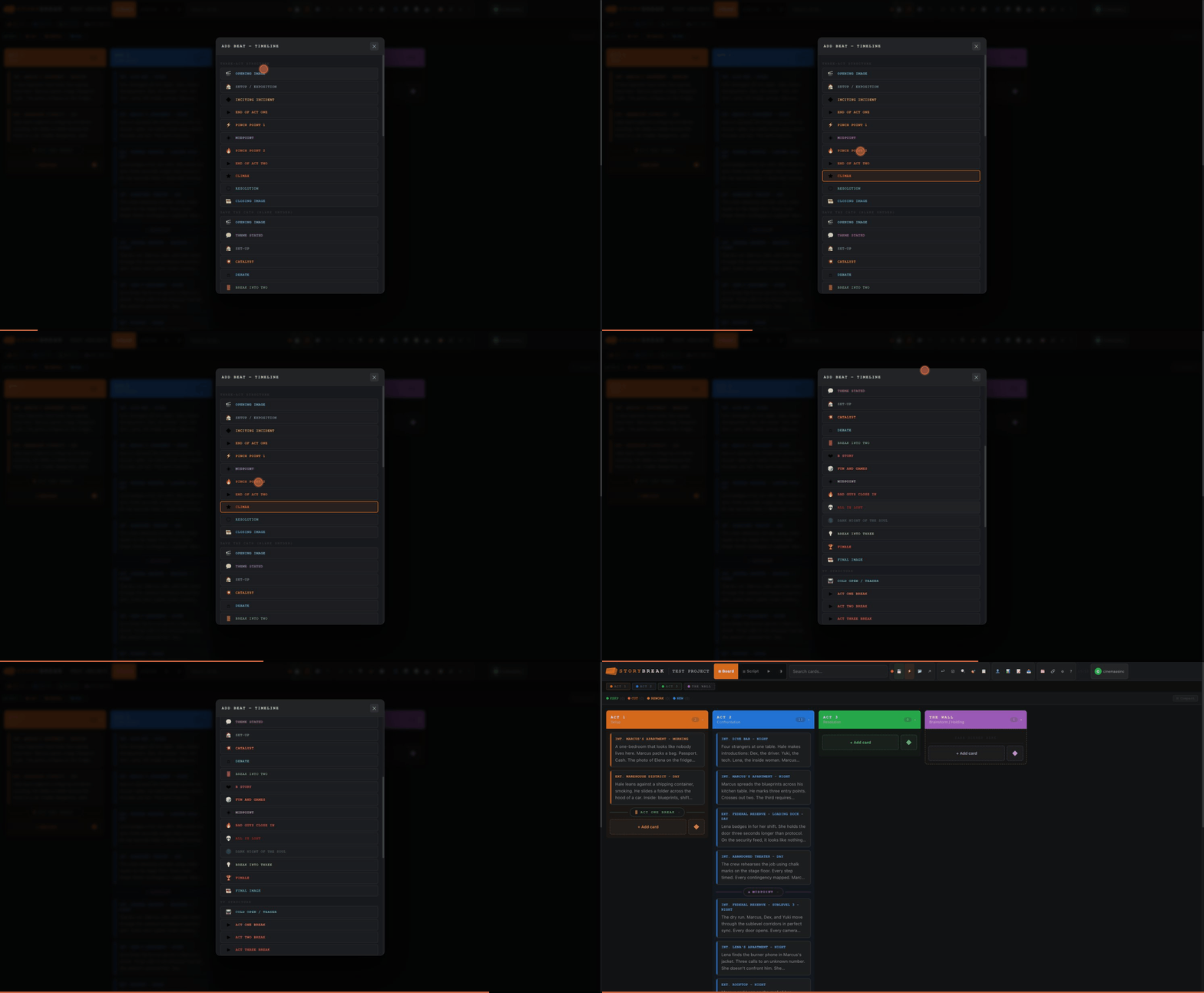
Four beat systems built in
Three-Act Structure (11 beats), Save the Cat (15 beats), TV Structure (9 beats), and the Hero's Journey (12 stages). Click the ◆ Beat button on any card to pick one.
Custom beats
At the bottom of the beat picker, type any label to create your own beat marker. Good for story-specific signposts — "J discovers the letter," "Time jump — 2 years."
Color-coded by framework
Each beat system has its own color scheme. Beat markers are visually distinct from scene cards so you can spot the structure at a glance, even from across the room in Present Mode.
Board & Script
Two views, two jobs. The board is where you explore. The script is where you organize. You need both — here's why.
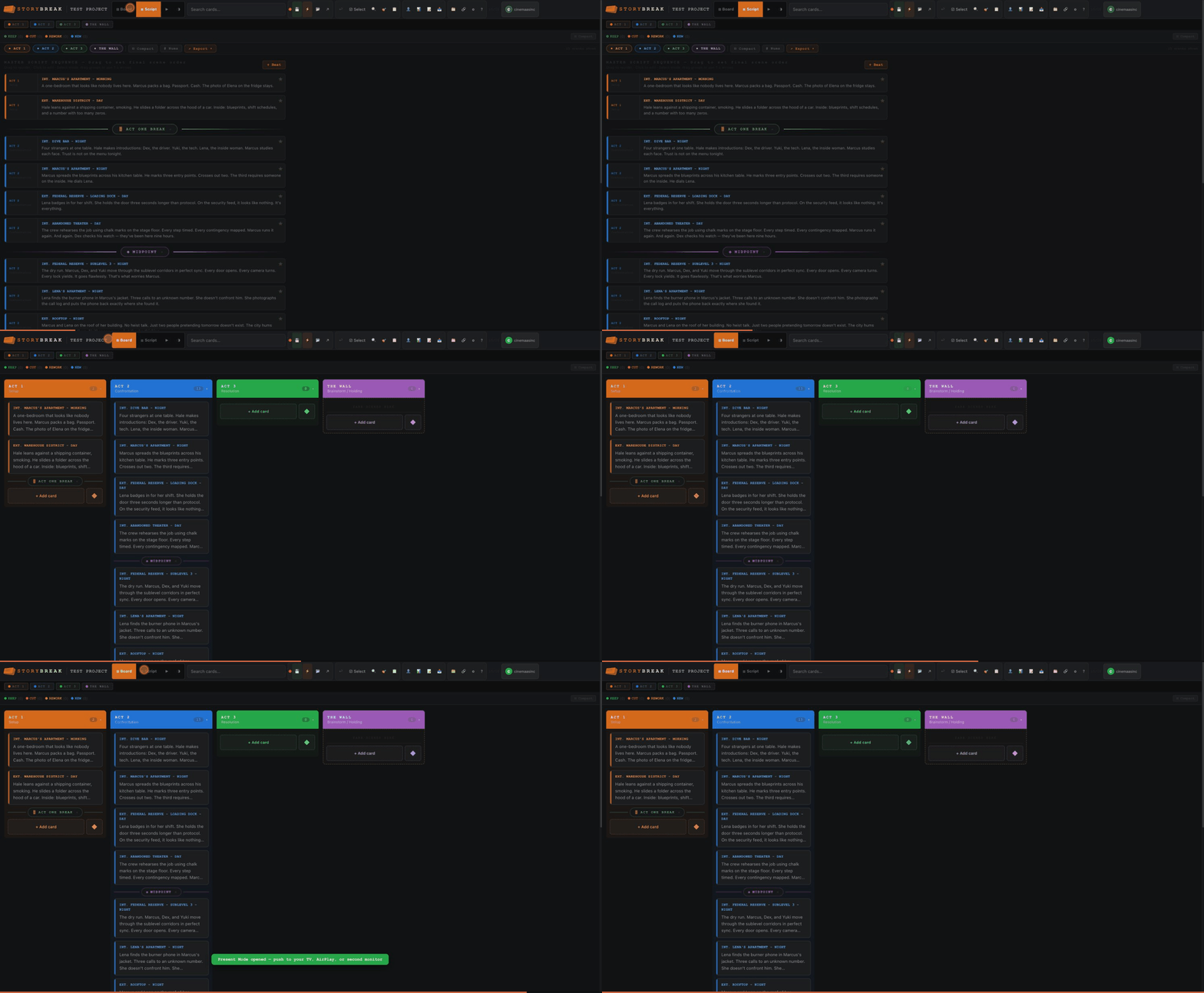
Board view — sprawl out and explore
Your timelines sit side by side as columns. Drag cards anywhere — across timelines, up and down, into holding areas. Throw ideas into a column that aren't ready yet. Park scenes off to the side. Compare your A-story and B-story at a glance. The board gives you space to think in multiple directions at once, the way index cards on a real wall do.
Script view — put it in order
When you're ready to organize — all of it or just a part — switch to Script view. Every card collapses into a single vertical sequence: the story as the audience will experience it. Now you can see if scene 12 really follows scene 11. Toggle timelines on/off to focus on one storyline. Enable scene numbers with #. Nudge selected cards with ↑↓ arrow keys to fine-tune the order.
Why both?
A script view alone would force you into a single line from the start — no room to explore, no place to stash scenes that aren't ready. The board lets you spread out, try things, and keep messy ideas visible without committing to their position. Then Script view snaps everything into narrative order when you need to check the flow. Flip back and forth as often as you want — they're the same cards, just seen differently.
Present Mode
Opens a separate live-sync window that mirrors your board in real time. Push it to a second monitor or AirPlay it to a TV. Every edit you make appears instantly — your writing partner sees the board update as you work. Perfect for writers' room sessions.
Characters, panels & power tools
Track character arcs, import existing scripts, keep your logline visible, and access side panels for stats, notes, and connections.
Character tracking
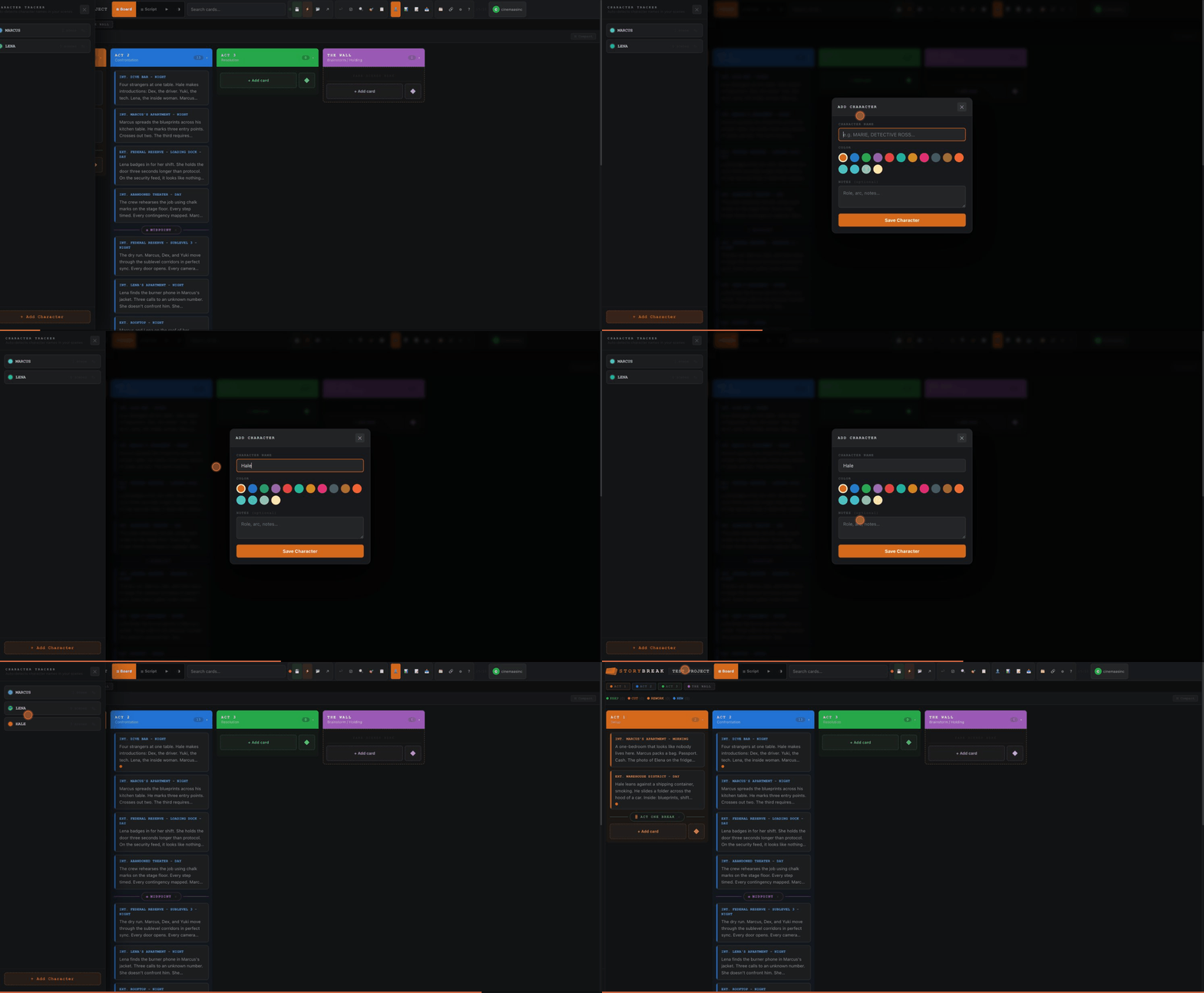
Create characters with names and colors. StoryBreak auto-detects their names as you write — every scene mentioning that character is tagged automatically. Click any character to filter the board and trace their journey through the story.
Smart Import
Paste any script, outline, or chapter list and StoryBreak auto-detects scenes and beat markers. Six parse modes: Smart, Fountain, Numbered List, Paragraphs, Headings, and Sentences. Your existing work turns into cards in seconds.
Logline & Theme bar
A persistent bar above the board that keeps your logline, theme, or a custom note visible while you work. Every scene you write has to answer to it. Toggle between Logline, Theme, and Custom modes — your north star, always in sight.
Connections
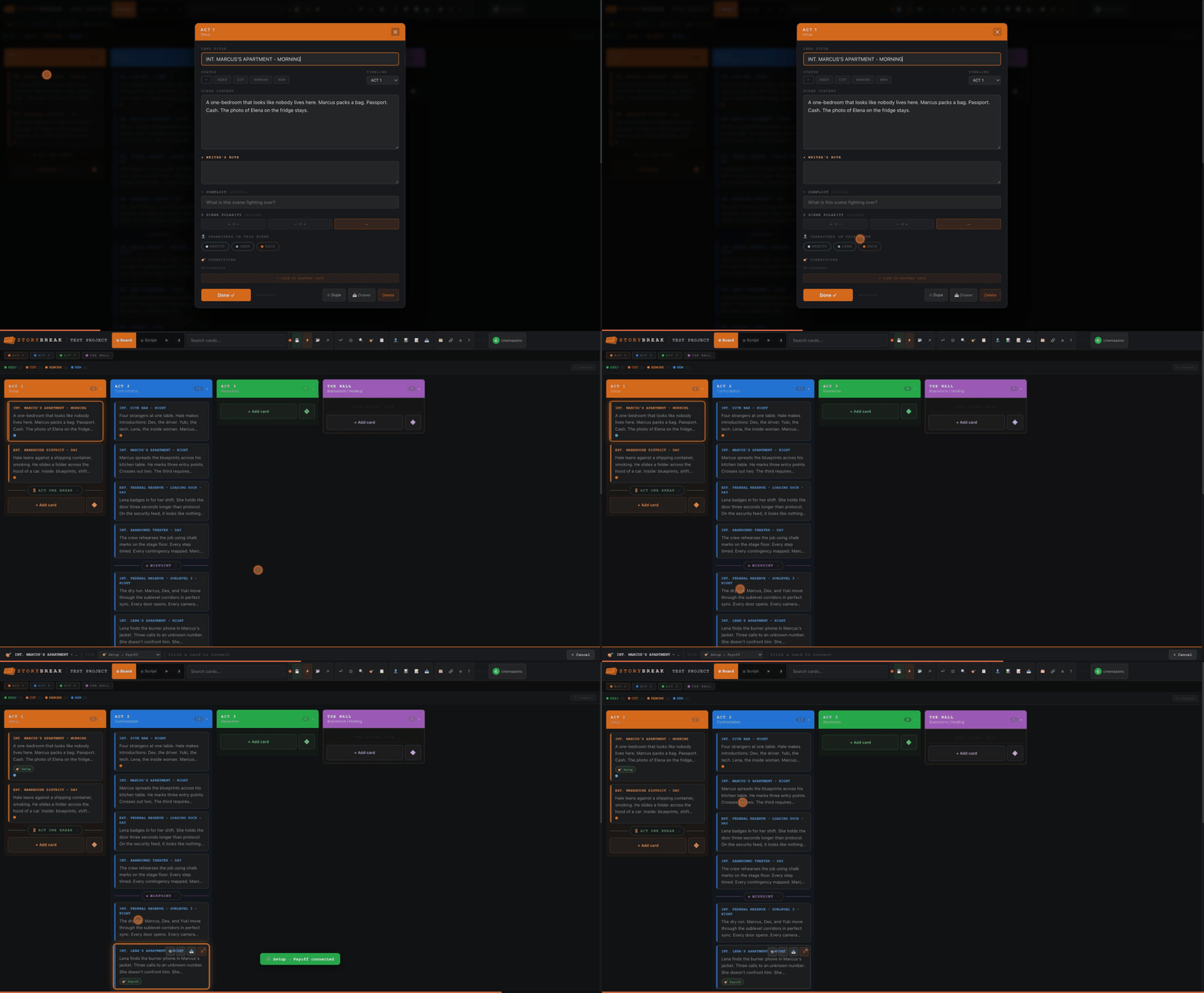
Link cards together to track setups and payoffs, plants and reveals, foreshadowing and callbacks. Four connection types built in, plus custom labels. Dangling connections warn you when a linked card gets deleted.
Card Drawer
Stash scenes off the board without deleting them. The drawer is your "maybe" pile — scenes that might come back, might not. Right-click any card → Move to Drawer, or drag directly. Click Restore to bring them back.
Stats panel
Scene counts per timeline, status breakdown (how many KEEP vs REWORK vs CUT), and a list of all flagged cards — click any to jump to it on the board. Your revision progress at a glance.
Scratchpad
A freeform notepad that lives inside your project. Jot down scene ideas, dialogue fragments, plot questions, research notes — anything that doesn't fit on a specific card yet. Saved and synced with everything else.
Light & dark theme
Toggle between dark mode (default) and light mode from the toolbar. Both themes are fully styled — pick whichever suits your environment.
Export, print & share
When the structure is ready, export to your writing software, print physical cards, or share with collaborators.
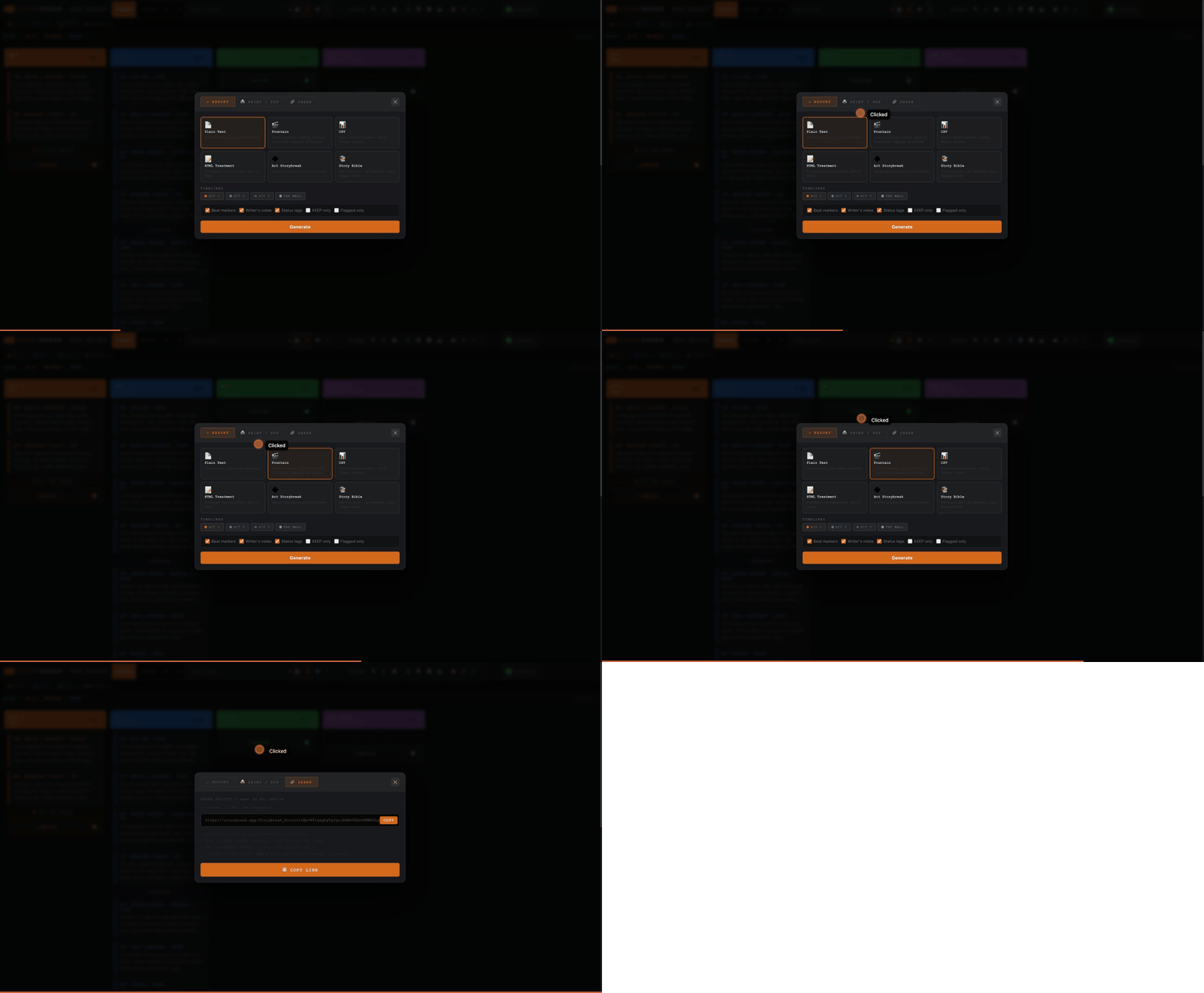
Six export formats
Fountain for Final Draft / Highland / WriterDuet, Story Bible for comprehensive reference docs, HTML Treatment for producers, Act Storybreak for beat-grouped structure, CSV for spreadsheets, and Plain Text for pasting anywhere. Toggle notes, status tags, beats, and individual timelines before exporting.
Six print layouts
Master Script (linear sequence), Timeline Columns (side-by-side), Compact List (titles only), Beat Sheet (structure-first), Full Treatment (all content + notes), and Index Cards — physical cut-out cards at 4×6, 3×5, or half-sheet size. Print to PDF or paper.
Share link
Generate a single URL that contains your entire project — every card, beat, note, and character compressed into one link. Send it to anyone. They open it in any browser and see your corkboard instantly. No account needed. Free feature.
Cloud sync & accounts
Sign in with Google, Discord, or Facebook and your projects auto-save to the cloud every few seconds. Open StoryBreak on any device — laptop, iPad, phone, desktop app — sign in and all your projects are there. No manual file transfers.
Multiple projects
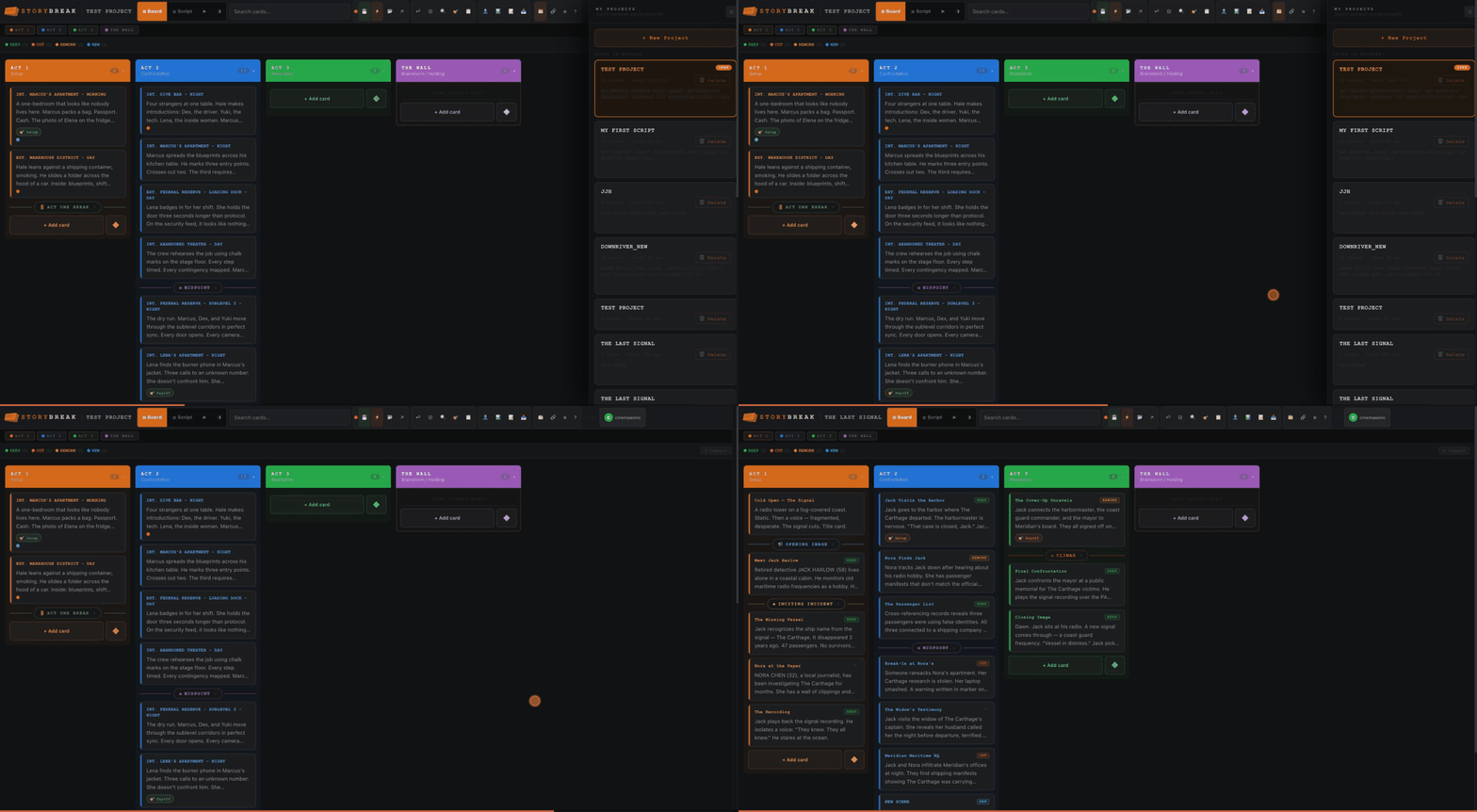
Work on as many projects as you want. The Projects panel lets you switch between them instantly — your current project auto-saves before loading the next one. Each project keeps its own cards, beats, characters, and settings.
Join the StoryBreak community
Got a question about the app? Stuck on your story structure? Want to share what you are working on? The Discord is where writers help each other. The developer is in there too, answering questions and building features you ask for.
Join Discord →Free. No spam. Just writers helping writers.
Ready to start?
Build your story one card at a time. Start free, upgrade when you need more.
Start Free →